Introduction
Recently, I experimented with an interesting project that connects Codex to WeChat. This means you no longer need to sit at your computer or repeatedly open the Codex desktop app or CLI. You can send messages directly in WeChat, allowing Codex to check your local projects, review code, organize tasks, set reminders, and even run automated tasks.
This project is called CodexBridge.

My AI is named Grace.

Its purpose is simple: to turn your local Codex into an AI assistant that can be accessed anytime via WeChat.
Features
Once connected, you can use CodexBridge in WeChat as follows:
1. Check Current Status
Send:
/status
It will inform you about the current project directory, the active Codex thread, model, permission status, etc.
2. Let Codex Review Local Projects
For example, you can send:
帮我看一下这个项目的目录结构,告诉我这个项目是做什么的
Since Codex runs on your computer, it can read your local project files. This is different from ordinary chatbots that can only respond to the content you send them. With CodexBridge, the real Codex is behind it, capable of working in your local workspace.
3. Conduct Code Reviews Directly in WeChat
Send:
/review
This command allows Codex to check the uncommitted changes in the current project. You can also send:
/review base main
to compare with the main branch and check for any issues in the changes.
4. Manage Threads
You can send:
/threads
to view previous Codex sessions. You can also send:
/open 2
to continue the second thread. This is perfect for scenarios where you use Codex on your computer during the day and check progress in WeChat at night.
5. Switch Models and Thinking Intensity
For example:
/model
/model high
/model gpt-5.5 xhigh
You can switch models in WeChat without opening your computer.
6. Note Taking, Reminders, and Task Management
For instance:
/as 明天上午10点提醒我给客户回电话
/todo 下周五前整理产品介绍页
/log 今天测试微信桥接,发现启动服务不能关
/note 这个项目适合做成小白教程
It can do more than just chat; it can also act as a personal assistant.
7. Set Up Scheduled Automations
For example:
/auto add 每天早上8点把今天待办事项整理后发给我
/auto add 每30分钟检查一次系统状态,有变化发给我
/auto confirm
This allows you to schedule background tasks for Codex on your machine via WeChat.
Installation Guide for Beginners
The easiest way is not to type commands manually. Simply download the CodexBridge project locally and give Codex the following instructions, replacing [填入你的项目路径] with your own path:
我已经把 CodexBridge 项目下载到本地了,项目路径是:`[填入你的项目路径]`。

请你帮我完成本地部署,把微信和 Codex 接起来:

1. 先检查 Node 版本,项目要求 Node >= 24。
2. 在项目目录运行 `npm install`。
3. 检查 `codex --version` 是否可用;如果不可用,先帮我安装或修复 Codex CLI。
4. 运行 `npm run weixin:login`。
5. 把生成的微信扫码链接和二维码图片路径发给我,让我扫码确认。
6. 扫码成功后,确认账号文件已经保存到 `~/.codexbridge/weixin/accounts/`。
7. 启动微信桥接服务,默认工作目录用这个项目目录。
8. 如果是 Windows,请帮我创建一个“用户登录后自启动”的计划任务,任务名用 `CodexBridge-Weixin`。
9. 如果普通安装脚本因为 `Access is denied` 失败,就改用当前用户 `Limited` 权限创建,并用隐藏窗口方式启动,避免出现可关闭的 Node 窗口。
10. 最后检查服务是否正在运行,并让我在微信里发送 `/status` 或 `/h` 做连通性测试。

注意:
不要泄露任何账号 token 或 secret。
二维码如果过期,就重新运行 `npm run weixin:login` 生成新的。
Codex will send you a WeChat scan link that you can use to confirm with your phone.
Testing After Successful Installation
In WeChat, first send:
/h
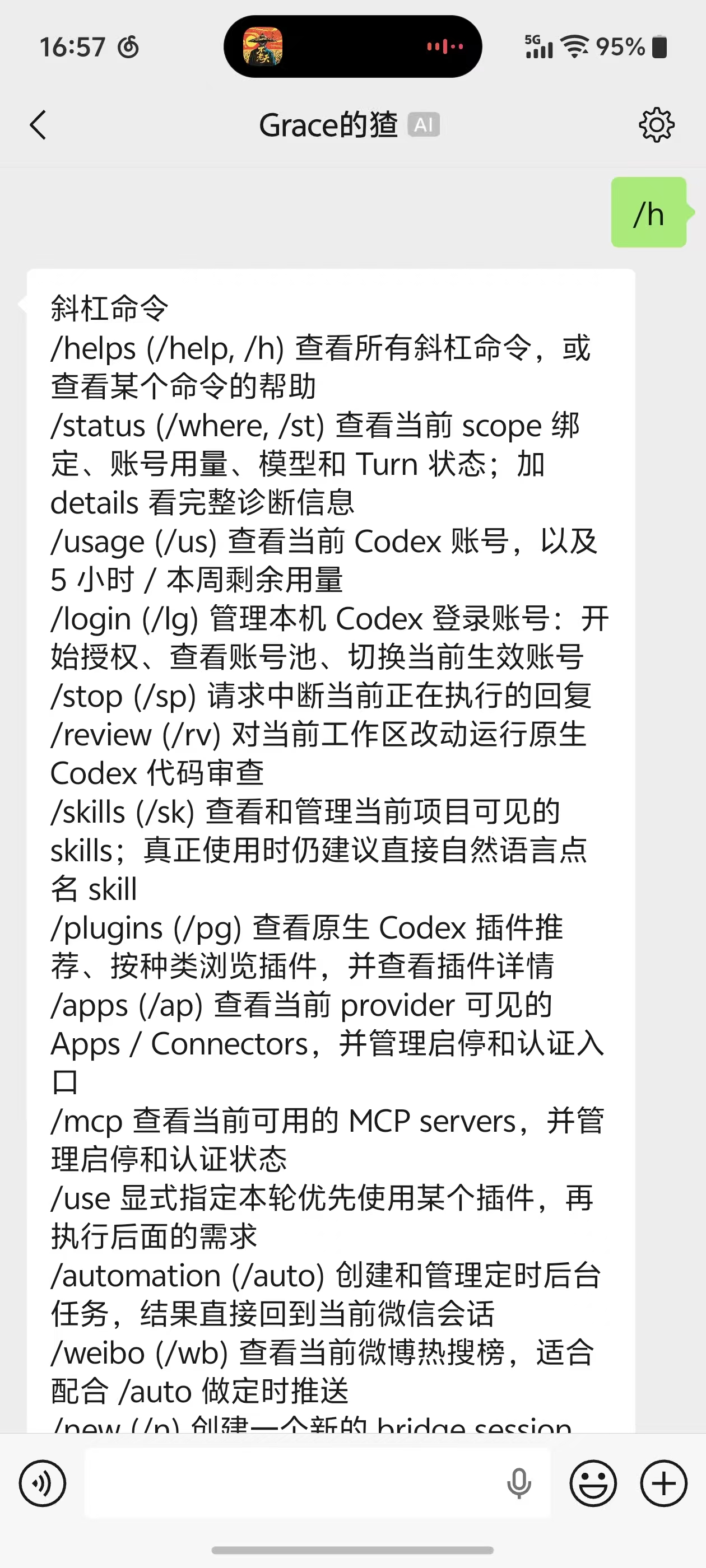
or:
/status
If you receive a response, it means the bridge is successfully connected. You can then try:
帮我总结一下当前项目是做什么的
or:
/review
If it returns content normally, your WeChat is connected to your local Codex.
Key Point
What truly allows it to continuously respond to WeChat messages is:
npm run weixin:serve
If you only log in but do not start the service, there will be no responses in WeChat. It is best to have Codex set to start automatically on boot/login. On Windows, this means setting up a scheduled task. This way, after you log into your computer, it will run in the background, allowing you to use the commands mentioned above.
Who Is It Suitable For?
I believe it is most suitable for:
- Those already using Codex for coding.
- Those who want to remotely check project progress via WeChat.
- Those who frequently ask AI to organize code, documents, and tasks.
- Those who want to turn their local AI assistant into a “portable WeChat assistant.”
- Those who do not want to install another app and prefer to control Codex directly through WeChat.
Important Considerations
This system is not a cloud-based robot. It relies on your computer. Therefore:
- If your computer is off, it cannot respond.
- If your computer is in sleep mode, it may not respond.
- If the network is down, it cannot respond.
- If Codex CLI is not logged in properly, it cannot function correctly.
- Do not share token, secret, or account files with others.
You can think of it as: WeChat is just the entry point; the real work is done by Codex on your computer.
Download Method
If you can access the world’s largest dating site, you can directly search for CodexBridge. If you cannot access it, feel free to leave a comment, and I can send you the project files.
Difference from OpenClaw
OpenClaw is a general AI Agent platform aimed at being a self-hosted Gateway that connects various chat channels, models, skills, and automation capabilities. The official documentation emphasizes support for 50+ messaging channels, any model, skills, agents, and memory capabilities.
Its integration with WeChat is through an external plugin @ tencent-weixin/openclaw-weixin, with OpenClaw core remaining channel-agnostic, while WeChat login, iLink API, and account monitoring are managed by the plugin: OpenClaw WeChat docs.
In contrast, CodexBridge is narrower in focus: its core goal is WeChat + Codex, where WeChat serves merely as the entry point, and the actual execution is handled by the local Codex. Codex thread/cwd/model/reasoning/permissions are central to its functionality.
Thus, OpenClaw’s advantages lie in its extensive ecosystem and diverse channels, while CodexBridge excels in closely aligning with Codex’s native workflow, providing a WeChat experience tailored around Codex.
Comments
Discussion is powered by Giscus (GitHub Discussions). Add
repo,repoID,category, andcategoryIDunder[params.comments.giscus]inhugo.tomlusing the values from the Giscus setup tool.